Help
User guide
Screenshots use made-up trades: the numbers on them are not real. The red frame marks what the text is about.
Contents
What Qubitrino is
Qubitrino is a trade journal. You upload a trade history report from MetaTrader, and the service computes numbers from your trades: totals, streaks, hours, instruments, position size after losing trades. Then you set rules for yourself, and the service shows how much breaking them cost on your history and how well you keep them now.
Qubitrino describes the past based on your own trades. It is not trading advice: the service gives no investment recommendations and promises no returns.
The Qubitrino sign
Hi, I’m Qubitrino
I don’t have emotions, so the sign shows what’s happening right now:
- Light in the centre — I’m thinking about your review. If it takes a while, a caption next to it will say what I’m doing.
- Petals flip one by one — I’m checking step by step: the report, the rules, the statistics.
- Petals fill up — uploading or saving; the fill shows how much is left.
- The sign is still — everything is ready.
Why the sign looks the way it does — see “The Qubitrino sign”.
Signing in
There is no password. On the sign-in page enter your email or phone and press “Get code” — a one-time code arrives by email or SMS. On first sign-in the site asks you to confirm the second channel the same way: until both email and phone are confirmed, only the confirmation screens and the profile are open.
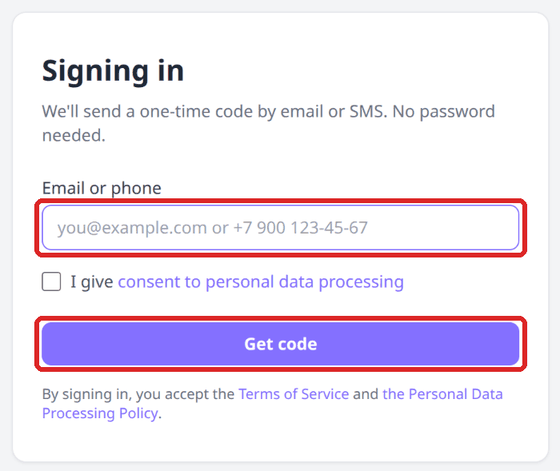
After sign-in the dashboard home opens. It suggests the next step: while there is no report — upload it; once the numbers are ready — open them.

Your account: profile and avatar
At the bottom of the left menu you always see your block: avatar, the start of your login and your plan. The avatar opens the profile, the plan opens the “Plans” page, and the button on the right of the block logs you out. When the menu is collapsed, only the avatar is visible.
The avatar is uploaded on the profile page: JPEG, PNG or WebP of a small size, cropped to a square. Without an avatar a circle with the first letter of your login is shown. Full email and phone live only on the profile page; the menu shows a shortened login so strangers cannot read it.
A few days before your subscription ends, an offer to renew at a discount appears above the block. After the subscription ends there is no discount — renewal is at full price.
Uploading a report
No trading account login or password is needed: the service reads only the report file that you save yourself in the MetaTrader terminal.
- At the bottom of the “Toolbox” window, open the “History” tab.
- Right-click the trade list, choose “All history”, then “Report” → “HTML (Internet Explorer)”.
- Save the file without changing it.
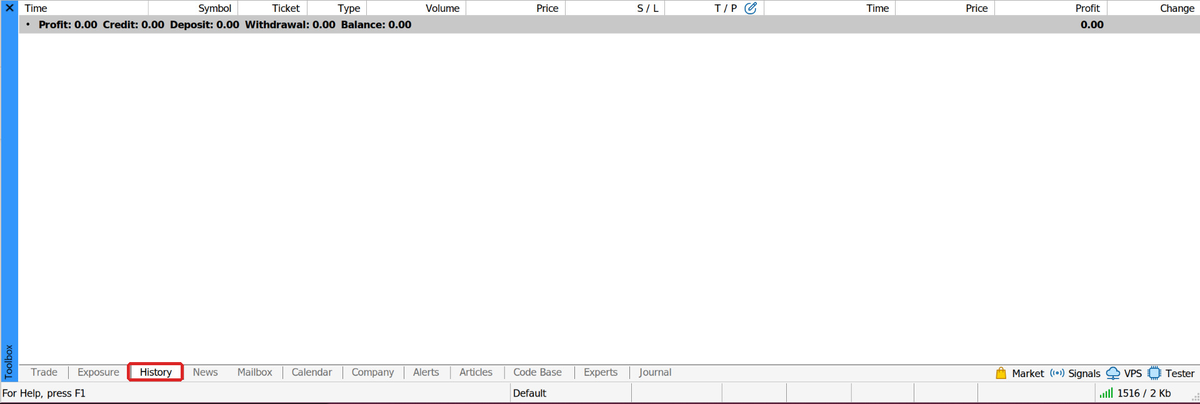
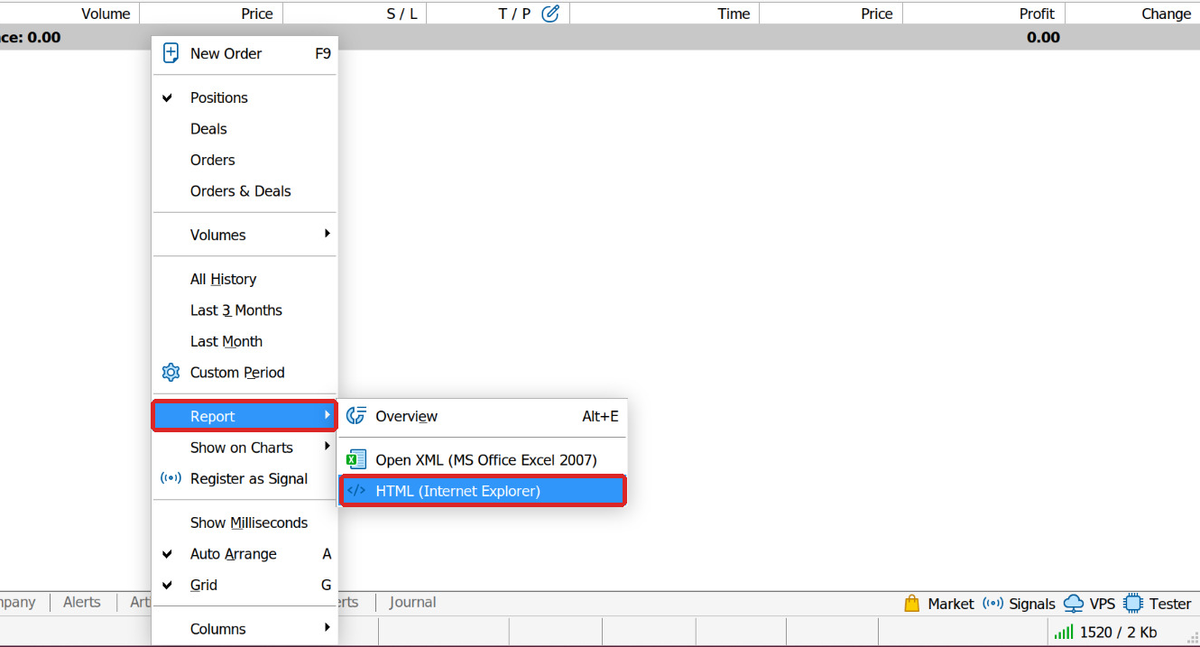
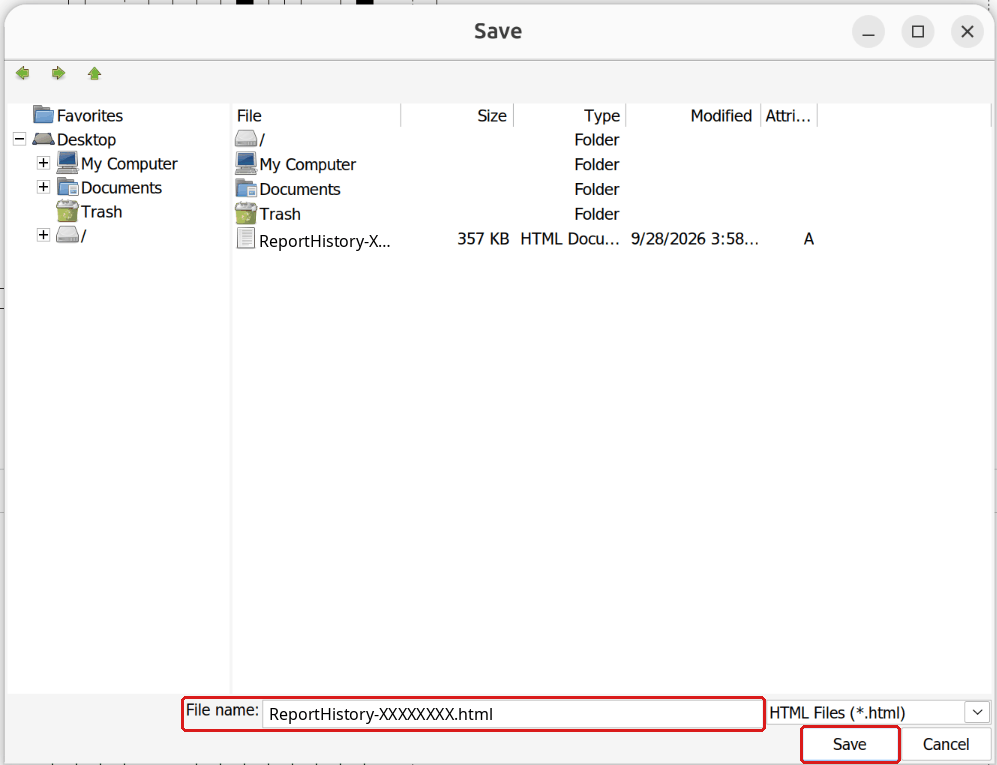
Then in Qubitrino open “My trades” → “Upload report”, choose the file and press “Upload”. Processing takes a little time; the status is visible in the “Recent imports” list. The account is created automatically from the report data.
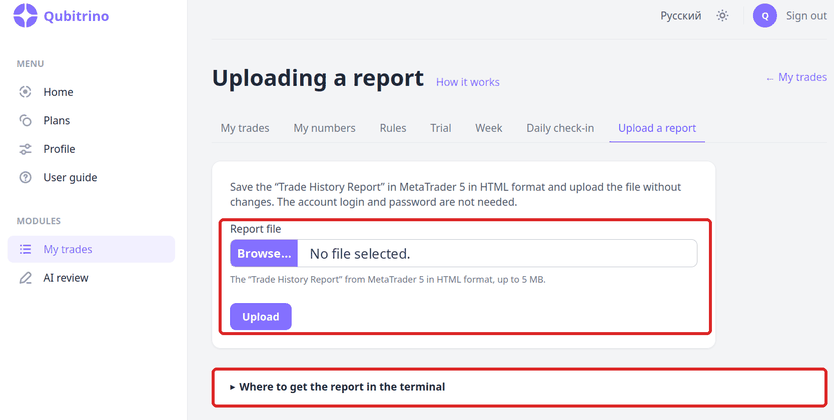
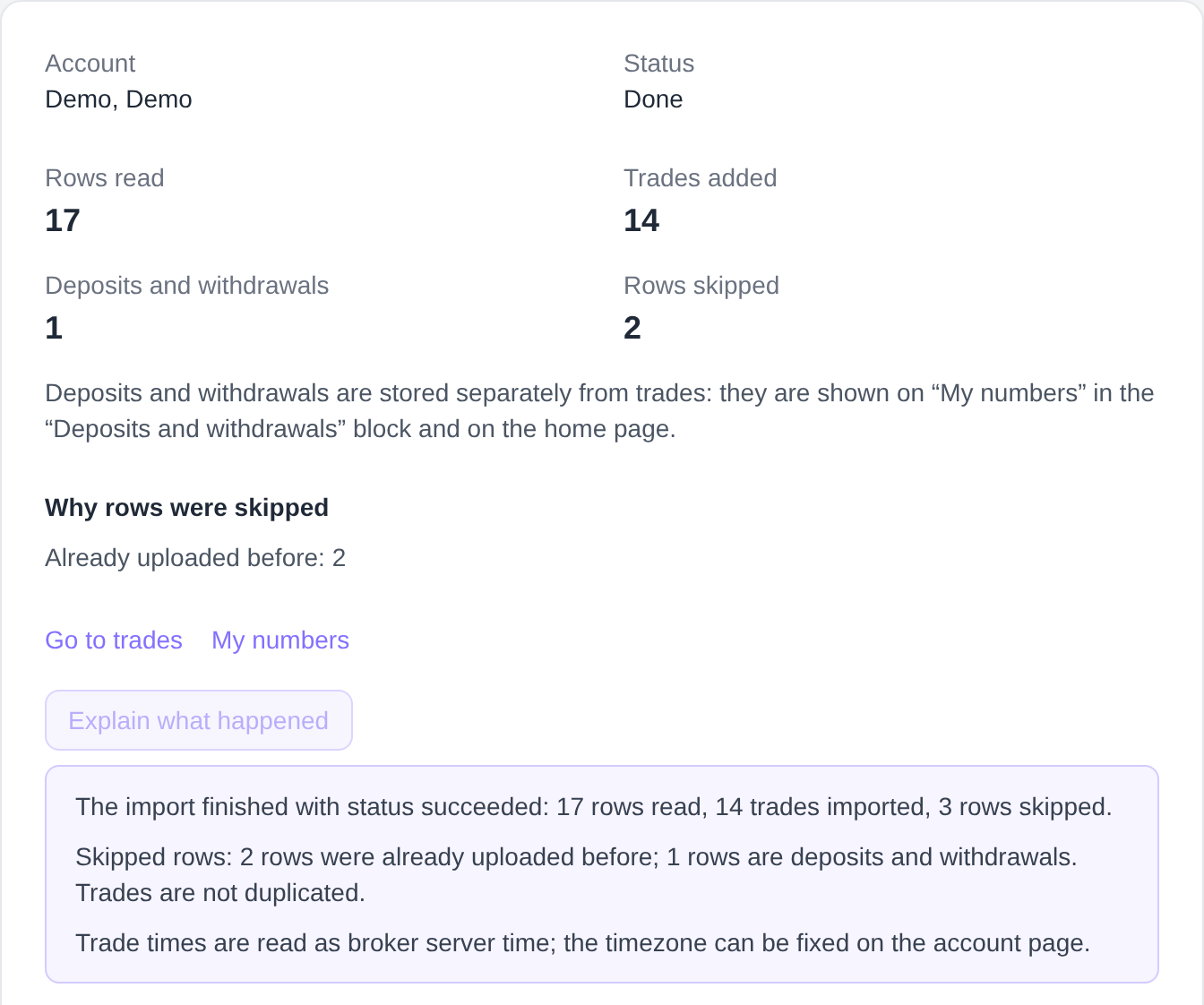
Add fresh trades with a new report. The service recognises already uploaded trades, so re-uploading the same period won't duplicate them.
If some rows were skipped or there are warnings, the import page shows the button «Explain what happened»: AI Qubitrino retells the diagnostics in plain words and suggests what to do next — for example, upload the same report again or set the server timezone on the account page.
My trades
The list of closed trades from reports: opening time, instrument, direction, volume, entry and exit prices, stop and take, result.
In the report, times are written in the broker server's clock, and the server timezone doesn't get into the report. So a trade has two times: as in the report and, below, in your timezone. If the server timezone is wrong, press “Change server timezone”: report times stay as they are, only your time and the per-hour numbers are recalculated.
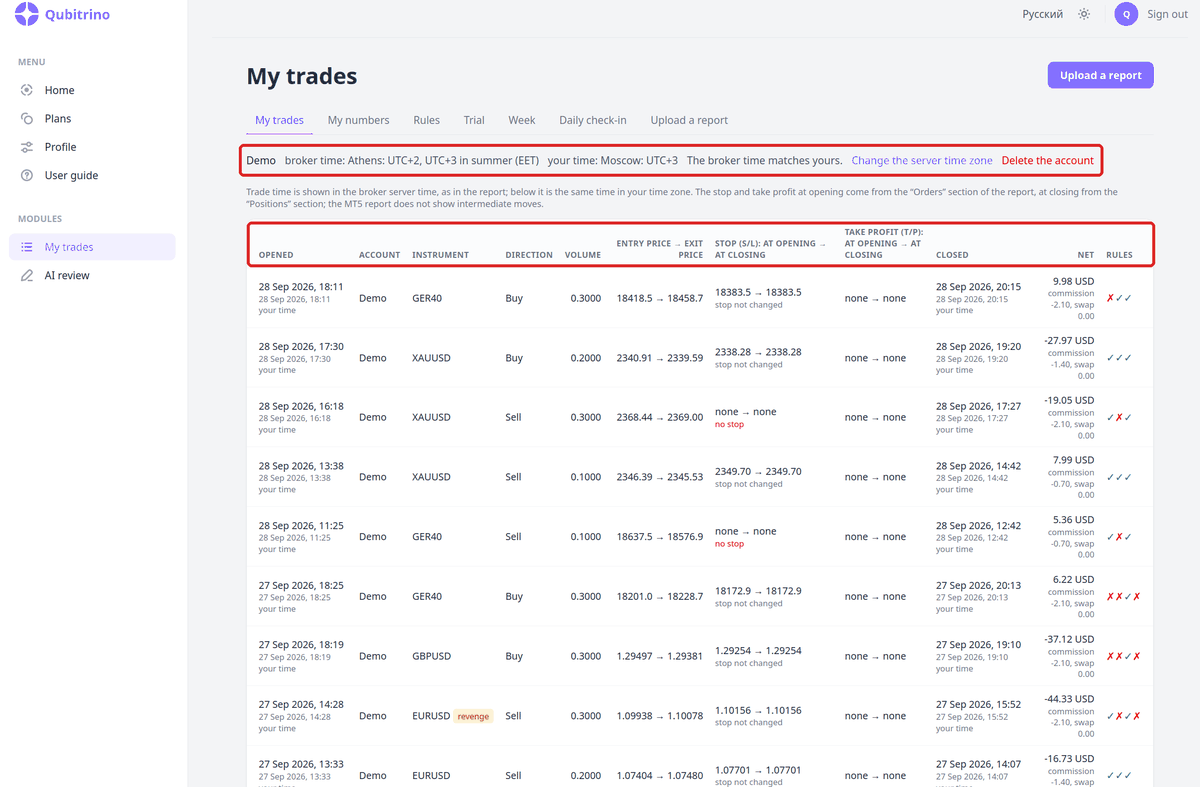
An account uploaded by mistake is deleted in the same place via the “Delete account” link — together with all its trades and numbers.
My numbers
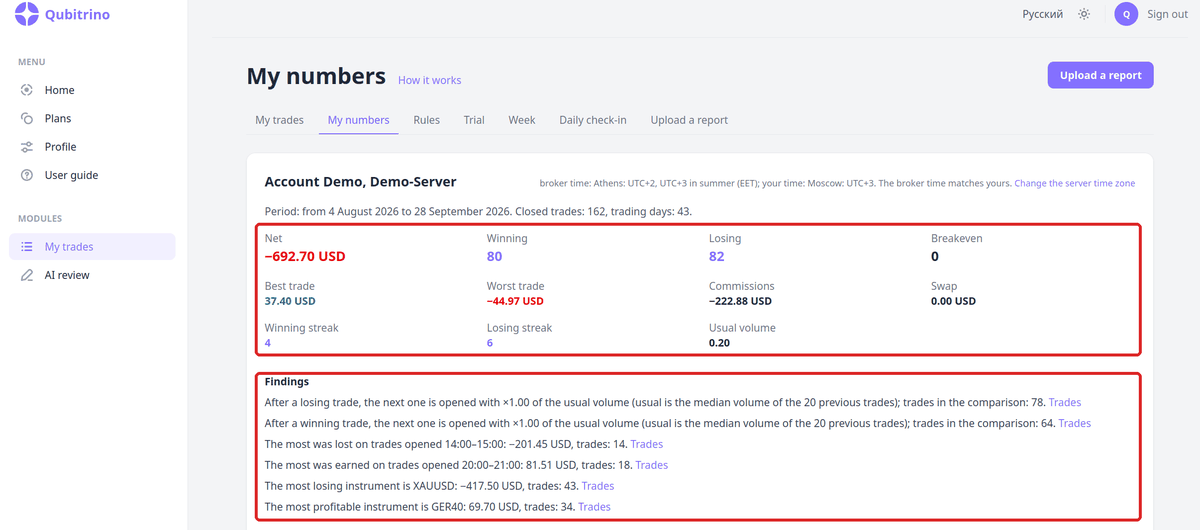
Numbers per account for the whole uploaded period: total, winning and losing trades, best and worst trade, consecutive streaks, commissions and swap, usual volume.
The “Findings” block holds the most noticeable things about your trades: the volume of the next trade after a losing and after a winning one, the hours where the most was lost and earned, the most losing and most profitable instrument. The “Trades” link next to a finding shows the trades it was computed from.
The “Recovery after a losing trade” block collects trades opened soon after a losing one with volume no smaller than it, and shows their total. Below — tables by opening hour, weekday and instrument, stops, deposits and withdrawals.
Five cards — total, stops, hours, cost of violations and revenge — have the «Explain» button: on click AI Qubitrino retells in plain words what the card shows and what stands out in its numbers. The text appears under the card without reloading the page; for the same numbers the explanation is not recalculated. The button is available to Pro Max plan owners.

Multiple accounts
If you have several accounts, a switcher appears above the numbers on the home page — the accounts are labeled with their names. The choice is remembered: next time you sign in, the home page shows the chosen account. Without a choice, the home page shows the account with the freshest numbers.
The home page — the period summary, rules and the AI review — is computed for the chosen account separately. “My numbers” shows each account as its own block, “My trades” is a shared feed of all accounts. Money and currencies of different accounts are never added together.
Week and daily check-in
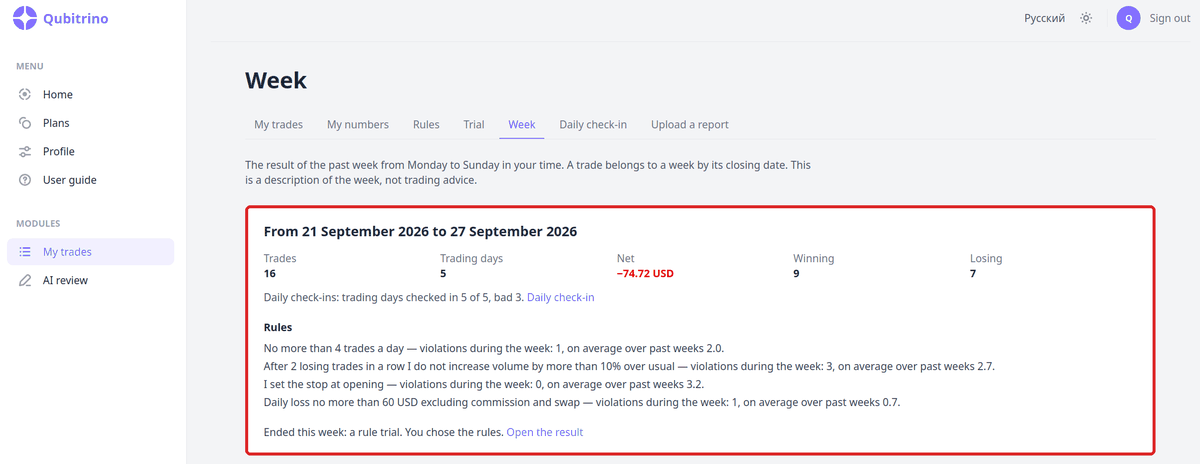
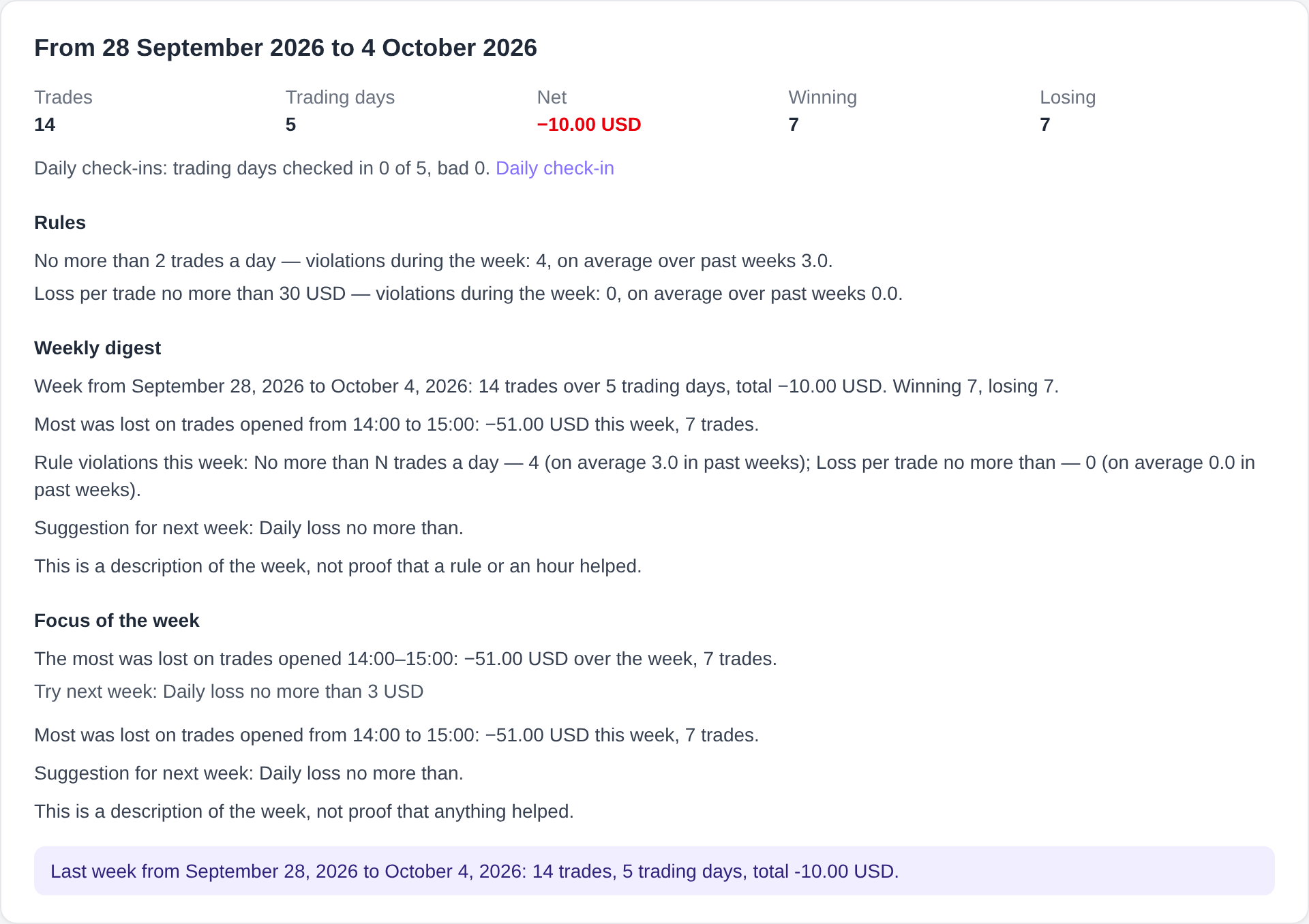
The “Week” tab is the summary of the past week, Monday to Sunday in your time: trades, trading days, total and rule violations for the week next to past weeks.
“Daily check-in” is two short questions about tension and focus; best answered before the first trade. In the evening you can answer whether the day's plan was kept. You can check in today, yesterday and the day before. Once enough check-ins accumulate, the service compares trades on bad days with the rest.
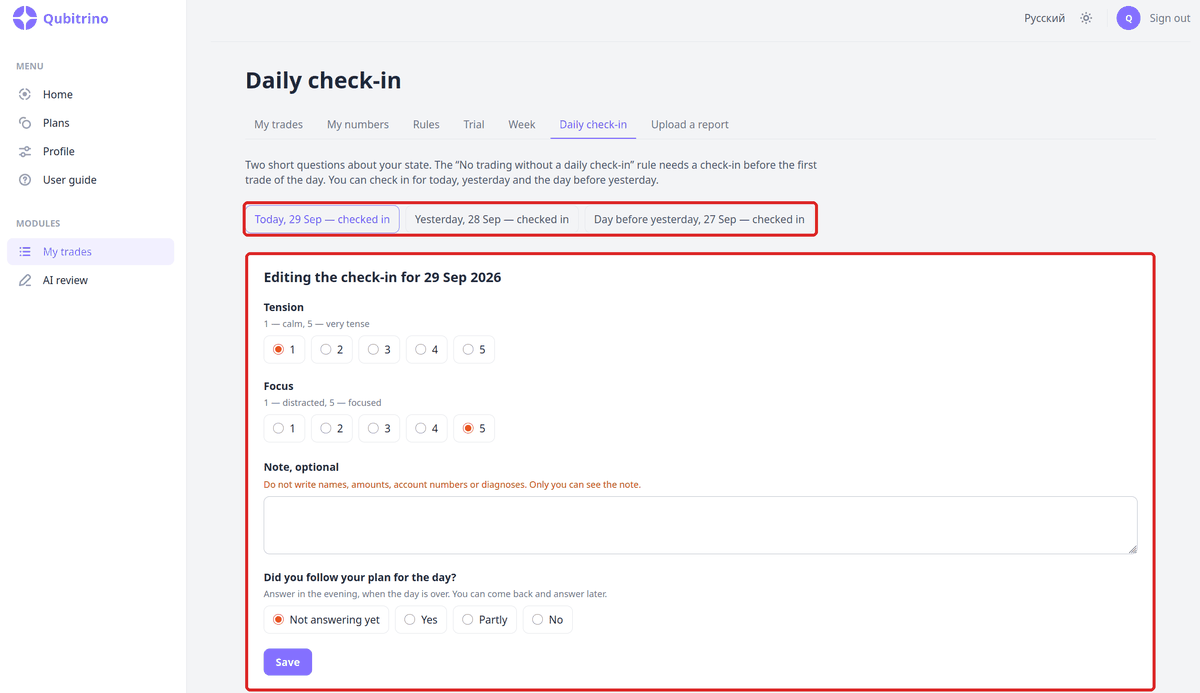
In the check-in note, don't write names, sums, account numbers or diagnoses. Only you can see the note.
Daily mark: calendar and chart
Below “Marks and your days” on the mark screen there are a calendar and a chart: they link your state to the day's result. Only your own data is shown.
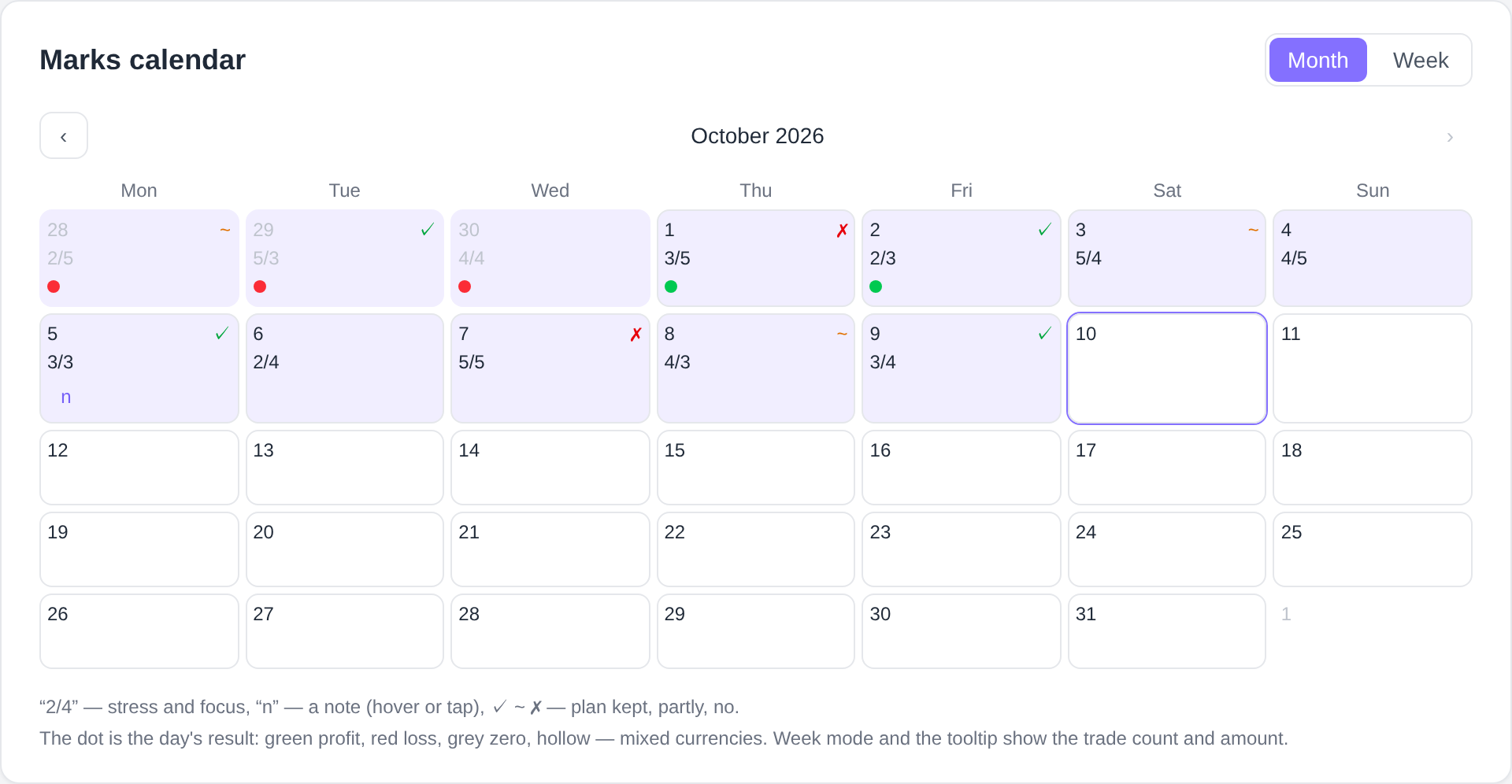
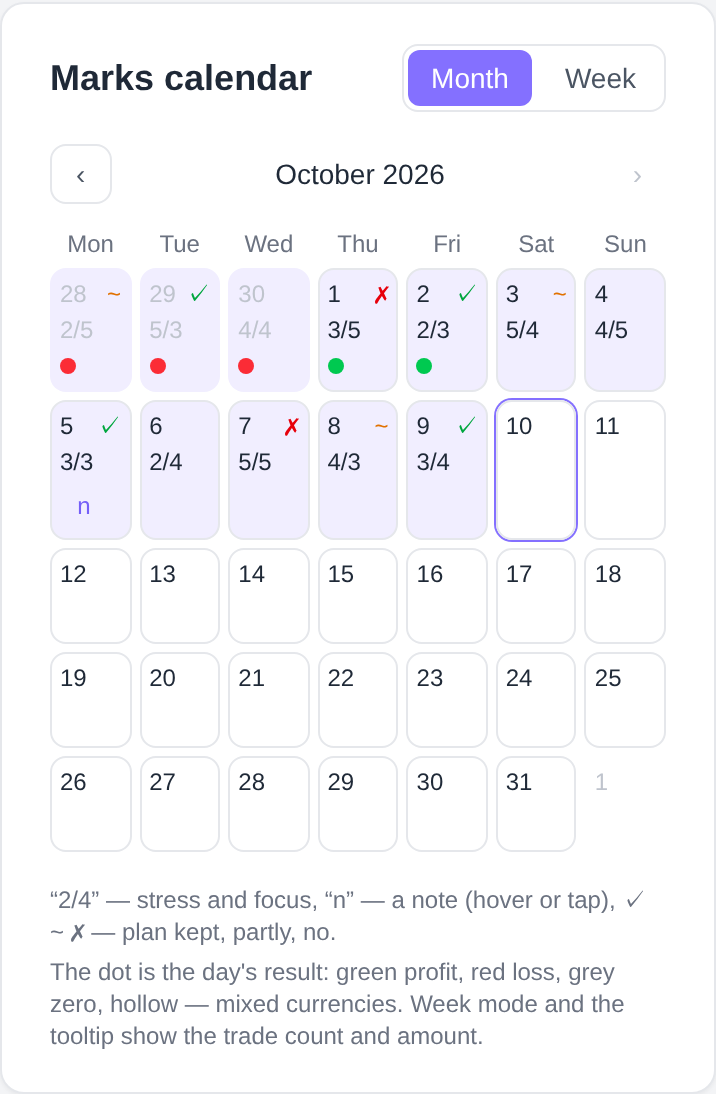
The calendar browses with arrows and swipes, modes — “Month” and “Week”. A day with a mark is highlighted: the cell shows the stress and focus scores as a fraction, the letter “n” reveals the note text on hover or tap, and the symbol on the right is the plan answer: ✓ — kept, ~ — partly, ✗ — no. The dot is the day's trading result: green — profit, red — loss, grey — zero; week mode and the tooltip show the trade count and amount.

The chart shows two panels sharing the day axis: stress and focus lines on a five-point scale on top, daily result bars with trade counts below. Money is not normalized to the score scale: each panel keeps its own scale. Reading example: several days of high stress matching losing days — time to rethink the load.
Over time there will be more state metrics — the calendar and the chart are ready for that.
Week focus and digest
A week with enough trading days has the «Week focus» block on the «Week» tab — the single most expensive observation from your trades: volume after a losing or a winning trade, the worst opening hour or the weakest instrument. When the history suggests a suitable rule, a «Try next week» suggestion appears next to it.
On the Pro Max plan the focus line unfolds into its text from AI Qubitrino, and at the start of the week the «Week digest» appears in the same place — one brief summary of the past week from your numbers. The digest arrives on its own, nothing to click; once written, the digest does not change when numbers are recalculated.
Rules
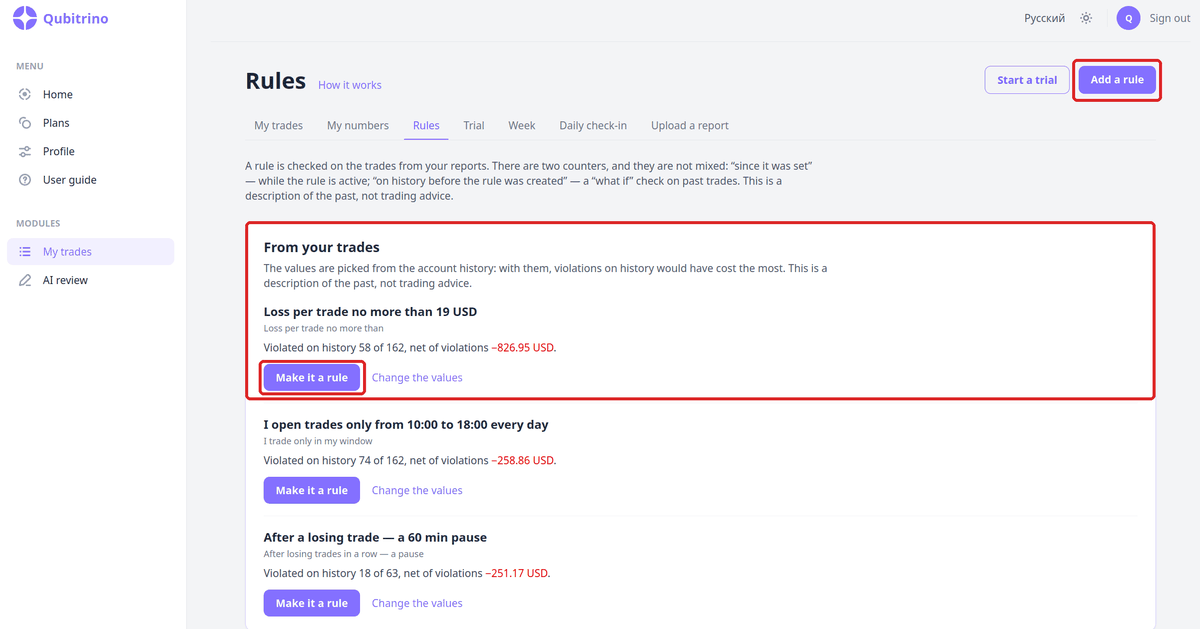
A rule is your own limit: for example, no more than a certain volume per trade, no more than a certain number of trades per day, trade only in your window, don't trade without a daily check-in. Rules are picked from the library with the “Add rule” button; you set the values yourself.
Each rule is checked against trades from reports, and it has two counters that are never mixed:
- “since it was set” — how you keep the rule while it is active;
- “on history before the rule was created” — a “what if” check on past trades: how many times the rule would have been broken and how much those trades cost.
Ready-made rules in the library are grouped into blocks: “How many trades and when”, “Volume”, “Losses and when to stop”, “Stop loss”, “State” and “Your own rules”.
The “From your trades” block suggests ready-made rules with values fitted to the account history: with them, violations on history would have cost the most. “Make it a rule” creates the rule with these values; “Change values” opens its form for editing.
Remember your rule in words but cannot find it in the list? Click «Describe the rule in words» above the library blocks (Pro Max plan): write, for example, «no more than three trades a day» and tick the consent — AI Qubitrino names the type from the library, and its card opens the usual rule form with the «Fill the form» button. Your text is not stored anywhere, and the rule is created only by your button in the form. If there is no such type in the library, the service honestly says so and offers to pick one yourself.

Rules like “Custom rule” and “Reminder to self” are not checked against trades — they're a reminder for you.
Rule trial
A trial is a week with the chosen rules. The launch day counts as day one; the period includes trades opened until midnight after the seventh day. You can start a trial on the “Trial” screen or with the “Start trial” button on the rules screen.
During the trial, upload fresh reports: without new trades it doesn't move. When the period ends, the result appears: how many times each rule was broken during the period and how many — on history before launch.
A finished result has the «Trial week and history before the start» block: the numbers of the period — trades, trading days and the total — next to the average full week before the start. If there are no weeks with trades before the start, the block shows only the period numbers.

The result image can be saved with the “Save image” button and shown, for example, in a chat. The image has no name, number or account title.
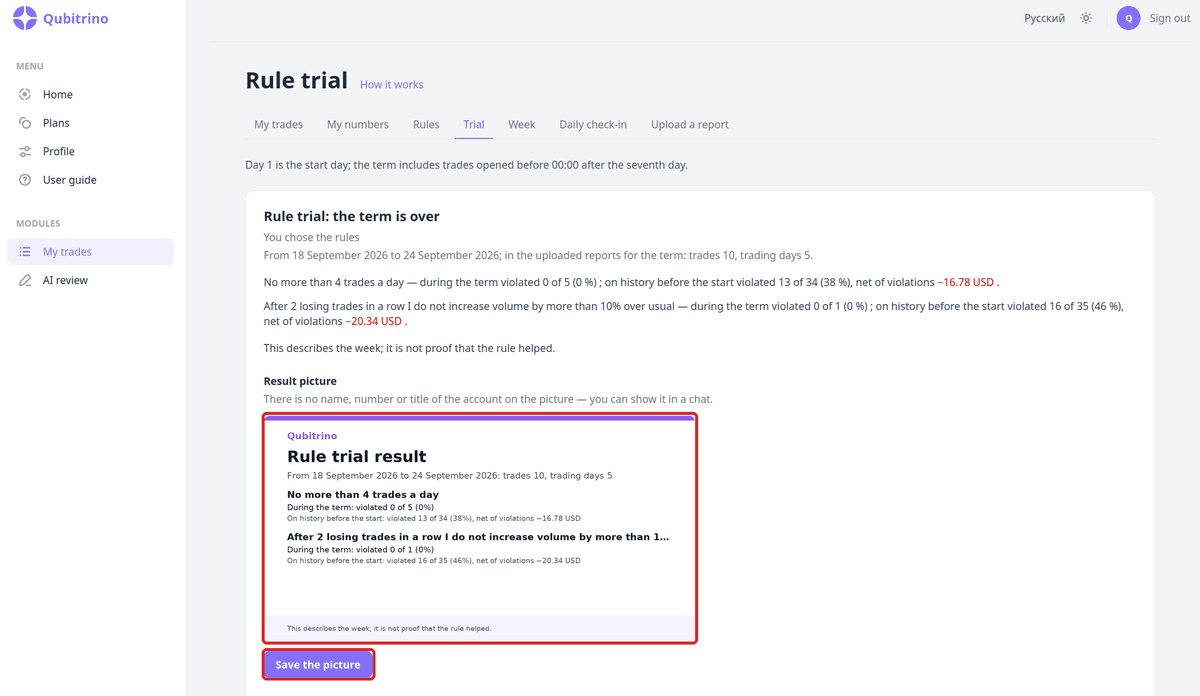
The trial result describes the week — it doesn't prove the rule helped.
AI Qubitrino
AI Qubitrino is in the Pro Max plan. The model retells your own numbers in words and adds nothing of its own. While the model review is being prepared or is unavailable, the page shows the text from your numbers without the model.
“Why you're losing” is in the same place: write in your own words why you think you're losing money. The model maps the text onto rules from the library, and next to each reason the service shows how often such a rule was broken on your history and how much it cost. Emails, phones and long numbers are hidden before the text is sent to the model.
Plans
- Free — one account and one successful report upload. Numbers, rules and rule checks on history are available.
- Pro — no limits on accounts and uploads, rule trials.
- Pro Max — everything in Pro, AI Qubitrino and «Why you lose».
Prices and terms are on the “Plans”. If a paid subscription ends, the data stays and remains visible; new uploads follow the Free limit.
FAQ
Do I need my trading account password?
No. The service reads only the report file you saved in the terminal.
Why does the trade time differ from mine?
In the report, time follows the broker server's clock. Your time is shown one line below; if it's wrong, set the server timezone with the “Change server timezone” button on the “My trades” screen.
Why does a rule with hours or days say “no data”?
The broker server timezone isn't set for the account yet. Set it — the estimates will be recalculated.
The report didn't upload. What to do?
Check that it's the “Trade History Report” in HTML format and the file wasn't opened or re-saved in another program. A failed upload doesn't spend the limit — save the report again and upload once more.
Is this trading advice?
No. All numbers and findings are a description of your past trades.
Where to write if something's wrong?
To info@qubitrinotech.ru. Don't send your account login and password — they're not needed.
Sign in — and start by uploading a report.